
In our Network Solutions team, demo hardware moves around all the time.
Sooner or later, the same question comes up:
“Who still has this switch in their GreenLake account?”
Answering that usually means logging into the GreenLake portal or running an API script — both inconvenient when you’re on the road.
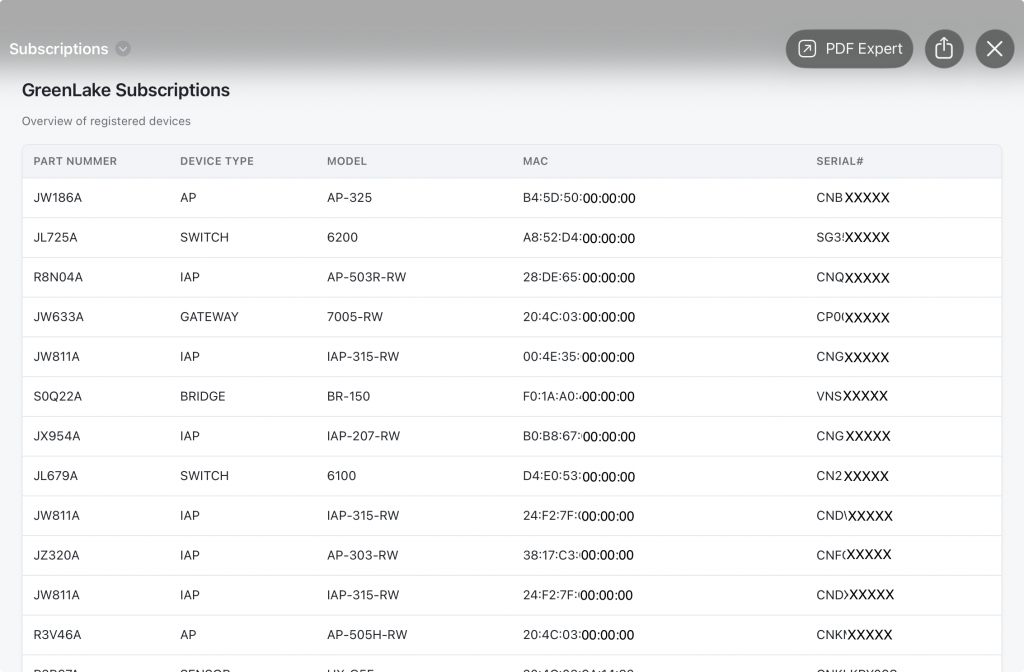
To fix that, I created a Shortcut that queries my GreenLake Device Inventory directly from the iPhone.
Why?
The GreenLake web interface isn’t optimized for mobile use, and API tools on iOS are clunky.
With Apple Shortcuts, you can run a full OAuth flow, make REST API calls, and display structured results — all locally, without external dependencies.
This guide walks through building a Shortcut that authenticates against HPE GreenLake, retrieves your devices, and shows them in a simple HTML table.
1. Prerequisites
Before you begin, you’ll need:
- An HPE GreenLake account with API access
- A client ID and client secret
- An iPhone, iPad, or Mac with the Shortcuts app
- Basic familiarity with REST APIs and JSON
2. Step 1 – Prepare your credentials
Add a Dictionary block to your Shortcut with two keys:
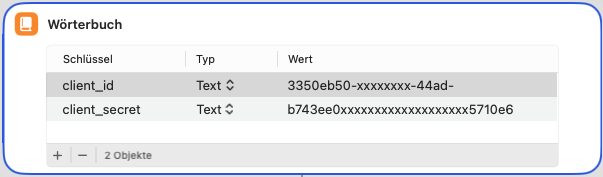
Retrieve these from your GreenLake API registration.
💡 Tip: Store your credentials as variables
After you’ve created the dictionary with client_id and client_secret, add two quick steps before calling the token API:
- Get Dictionary Value → select
client_id, then add Set Variable and name itclient_id. - Get Dictionary Value → select
client_secret, then add Set Variable and name itclient_secret.
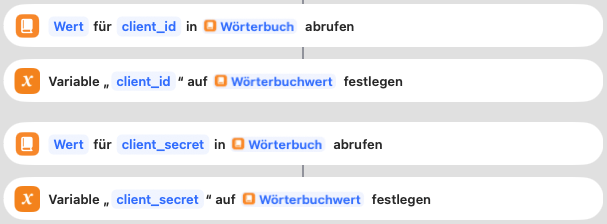
You’ll reference these variables in your next Get Contents of URL action to build the OAuth request.
It keeps your Shortcut clean and allows you to reuse the same credentials if you chain multiple API calls later.
This way to define variable is used for all further values extracted from API calls.
3. Step 2 – Authenticate with GreenLake
Add a Get Contents of URL action pointing to:
Set the properties:
- Method: POST
- Request Body: Form
grant_type = client_credentialsclient_id = [from dictionary]client_secret = [from dictionary]
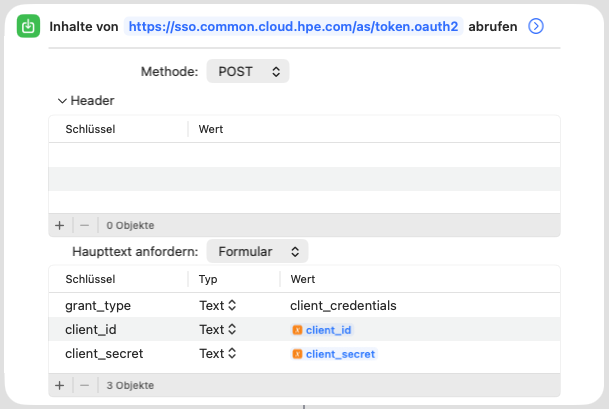
The response contains an access_token.
Use Get Dictionary Value to extract and store it in a variable called access_token.
4. Step 3 – Query the Device Inventory
Add another Get Contents of URL action:
Configure it as follows:
- Method: GET
- Headers:
Authorization = Bearer [access_token]Content-Type = application/json
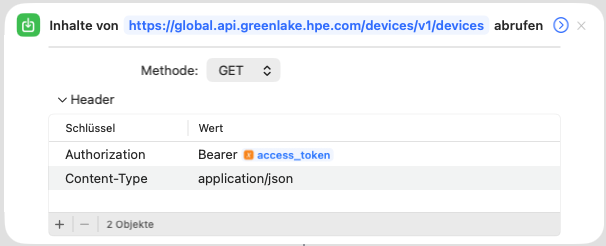
The API returns a list of devices in JSON format.
5. Step 4 – Extract device details
Add a Repeat with Each Item in Dictionary block.
Inside the loop, use Get Dictionary Value to retrieve:
partNumberdeviceTypemodelmacAddressserialNumber
Then build a table row with a Text block:
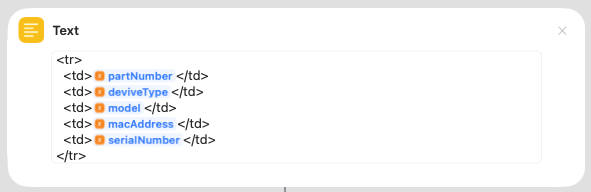
Append each row to a variable (for example, HTMLRows).

6. Step 5 – Generate the HTML output
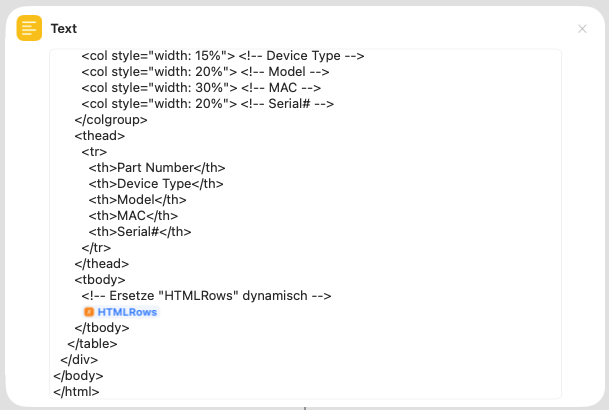
Wrap your rows in a basic HTML framework.
A simple Text block works well:
<
!DOCTYPE html>
<html lang="de">
<head>
  <meta charset="UTF-8" />
  <title>Übersicht der GreenLake Device Inventory</title>
  <meta name="viewport" content="width=device-width, initial-scale=1" />
  <style>
    :root{
      --gl-bg: #f6f7f8;
      --gl-card: #ffffff;
      --gl-text: #1f2328;
      --gl-muted: #6a6e73;
      --gl-border: #e5e7eb;
      --gl-header: #f2f4f7;
      --gl-hover: #f9fafb;
      --radius: 8px;
    }

    * { box-sizing: border-box; }
    body{
      font-family: "Segoe UI", -apple-system, BlinkMacSystemFont, Roboto, Helvetica, Arial, sans-serif;
      background: var(--gl-bg);
      color: var(--gl-text);
      margin: 0;
      padding: 24px;
      line-height: 1.4;
    }

    h2{
      margin: 0 0 12px 0;
      font-size: 20px;
      font-weight: 600;
      color: var(--gl-text);
    }
    .subtitle{
      margin: 0 0 16px 0;
      color: var(--gl-muted);
      font-size: 13px;
    }

    .table-wrap{
      background: var(--gl-card);
      border: 1px solid var(--gl-border);
      border-radius: var(--radius);
      box-shadow: 0 1px 2px rgba(0,0,0,0.04);
      overflow: hidden;
    }

    table{
      width: 100%;
      border-collapse: separate;
      border-spacing: 0;
      table-layout: fixed;
      font-size: 14px;
    }

    thead th{
      position: sticky;
      top: 0;
      z-index: 1;
      background: var(--gl-header);
      color: var(--gl-muted);
      text-align: left;
      font-weight: 600;
      font-size: 12px;
      letter-spacing: .02em;
      text-transform: uppercase;
      padding: 10px 12px;
      border-bottom: 1px solid var(--gl-border);
    }

    tbody td{
      padding: 12px;
      border-bottom: 1px solid var(--gl-border);
      color: var(--gl-text);
      background: #fff;
      overflow: hidden;
      text-overflow: ellipsis;
      white-space: nowrap;
    }

    tbody tr:hover td{
      background: var(--gl-hover);
    }

    .col-sku{ font-family: ui-monospace, SFMono-Regular, Menlo, Consolas, "Liberation Mono", monospace; }
    .col-num, .col-date{ text-align: right; }
  </style>
</head>
<body>
  <h2>GreenLake Devices</h2>
  <p class="subtitle">List of your GreenLake Devices</p>

  <div class="table-wrap">
    <table>
      <colgroup>
        <col style="width: 15%"> <!-- Part Nummer -->
        <col style="width: 15%"> <!-- Geräte Typ -->
        <col style="width: 20%"> <!-- Model -->
        <col style="width: 30%"> <!-- MAC -->
        <col style="width: 20%"> <!-- Serial# -->
      </colgroup>
      <thead>
        <tr>
          <th>Part Nummer</th>
          <th>Geräte Typ</th>
          <th>Model</th>
          <th>MAC</th>
          <th>Serial#</th>
        </tr>
      </thead>
      <tbody>
        <!-- Ersetze "HTMLRows" dynamisch -->
        HTMLRows
      </tbody>
    </table>
  </div>
</body>
</html>
Make sure to insert your HTMLRow Variable from previous Step.
7. Step 6 – Display or save the file
Add these final actions:
- Make Rich Text from HTML
- Save File as
Devices.html - Quick Look (optional – to open it immediately)
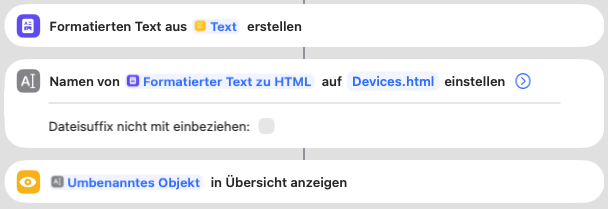
Now you can view your GreenLake inventory straight from your iPhone or iPad.
The result
You’ll get a local HTML table listing all devices in your tenant – part numbers, models, MAC addresses, and serials – clearly arranged and easy to read on mobile.
Perfect for those moments when someone asks
“Do we still have that Aruba 2930F switch?”
and you can check the answer from your phone.
Final thoughts
This Shortcut is a lightweight mobile viewer for the HPE GreenLake API.
It won’t replace proper asset management, but it’s perfect for quickly answering inventory questions while travelling or during a demo.
No laptop, no VPN – just a tap on your Shortcut and you know what’s in your account.
🔽 Download the Shortcut
You can download the ready‑to‑use Shortcut here:
When you run it for the first time, the Shortcut will ask for yourclient_id and client_secret.
These values come from your own HPE GreenLake API registration and are not included.
⚠️ Disclaimer
This Shortcut is provided as‑is, without any warranty or guarantee of correctness, completeness, or security.
Use it only if you understand what it does and have the necessary API credentials.
Running it may access your HPE GreenLake environment and should only be done with appropriate permissions.