
When using a captive portal in the Aruba environment, it is recommended to use a publicly signed wildcard certificate.
Since a guest device in a captive portal network cannot always verify certificate chains due to a lack of connectivity, it is advisable that the entire certificate chain is delivered by the Aruba device.
The complete chain consists of:
- Server (the actual wildcard certificate)
- Intermediate (intermediate certificate authority/authorities)
- Root (root certificate authority)
For Aruba products, it is important to strictly maintain this order.
It is rare that certificate authorities provide certificates in this exact format. The simplest method is to prepare the required file using OpenSSL and a text editor.
What is needed?
Software:
- OpenSSL
- Text editor
Files/Passwords:
- Wildcard certificate (as .pfx i.e., PKCS12, or .cer/.crt/.pem file)
- Private key (as a separate .key file or included within the .pfx certificate file)
- Export/import key/passphrase
- Intermediate certificates (as .cer/.crt/.pem file – depending on the chain, there may be multiple)
- Root certificate (as .cer/.crt/.pem PEM file)
What needs to be done?
First, all files should be converted into the .crt/.pem format, which allows further editing in a text editor. OpenSSL helps with this. The default installation directory for OpenSSL on Windows is:
C:\Program Files\OpenSSL-Win64\
This must be taken into account when executing commands. Also, make sure to run the commands in PowerShell as administrator.
openssl pkcs12 -in NameOfWildcardCertificate.pfx -out Wildcard.pemAfter conversion, the Wildcard.pem file can be opened with a text editor. Its content will look something like this.
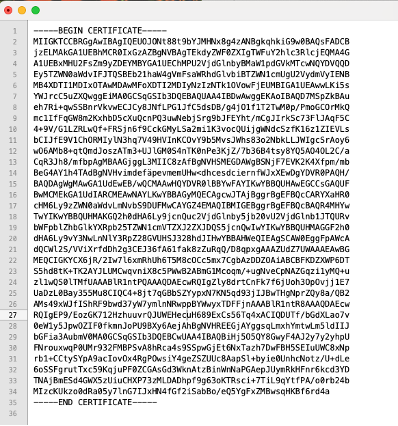
Create a new text file:
NameOfWildcardCert_w-chain.pem
Now copy the contents of the following files into this file, making sure to strictly follow the order:
- Wildcard.pem
- Intermediate
- Root
- Private Key
In some cases, the certificate files may include “human-readable” headers (Bag Attributes). These are optional. What is important is that you copy the BEGIN and END lines as well as the actual hash of the certificate or key.
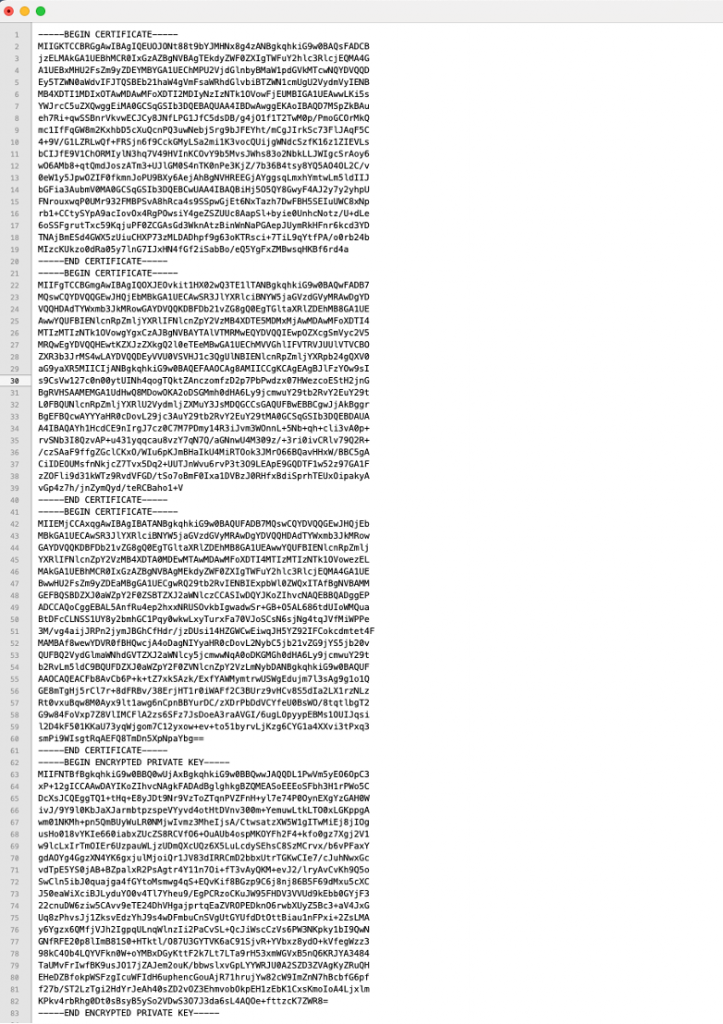
Save the newly created file NameOfWildcardCert_w-chain.pem.
This file now needs to be converted back into the .pfx format.
Use the following command:
openssl pkcs12 -in NameOfWildcardCert_w-chain.pem -export -out NameOfWildcardCert_w-chain.pfx⚠️ IMPORTANT: Ensure that the certificate, private key, and export/import password are securely stored and protected against unauthorized access. Delete the files from temporary working directories and make sure that recovery, e.g., from the recycle bin, is not possible.